How to set up your UPS shipping account
FAQs related:
I need troubleshooting with my UPS account
How to obtain my UPS Account number?
How to set up my account address?
Where can I find my UPS invoice details?
To connect your accounts on the platform: |
|---|
UPS Account type
Important : |
|---|
If your account is more than 30 days old, our system must have invoice information from you in order to successfully access your UPS API credentials.
The invoice used must be less than one month old.
If your account is less than 30 days old, our system does not need this information, and the left column of fields requesting an invoice can be left blank.
Our system uses the address and invoice information that you provide, and they must match exactly what is listed in your UPS account.
You should be able to review the existing information, but there are several locations in your UPS account that store different address information. If the address for your payment method fails, try using the address for your Pickup Location instead.
Obtaining your UPS Account number
Go to UPS.com
Navigate to Profile > Payment Options:
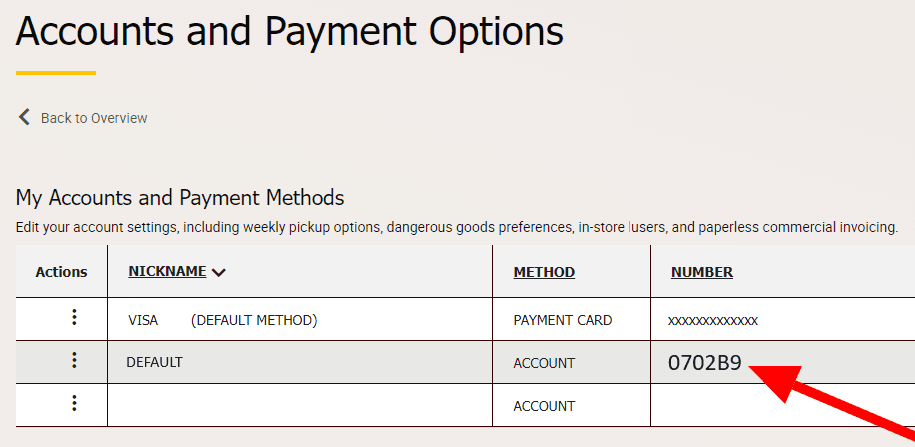
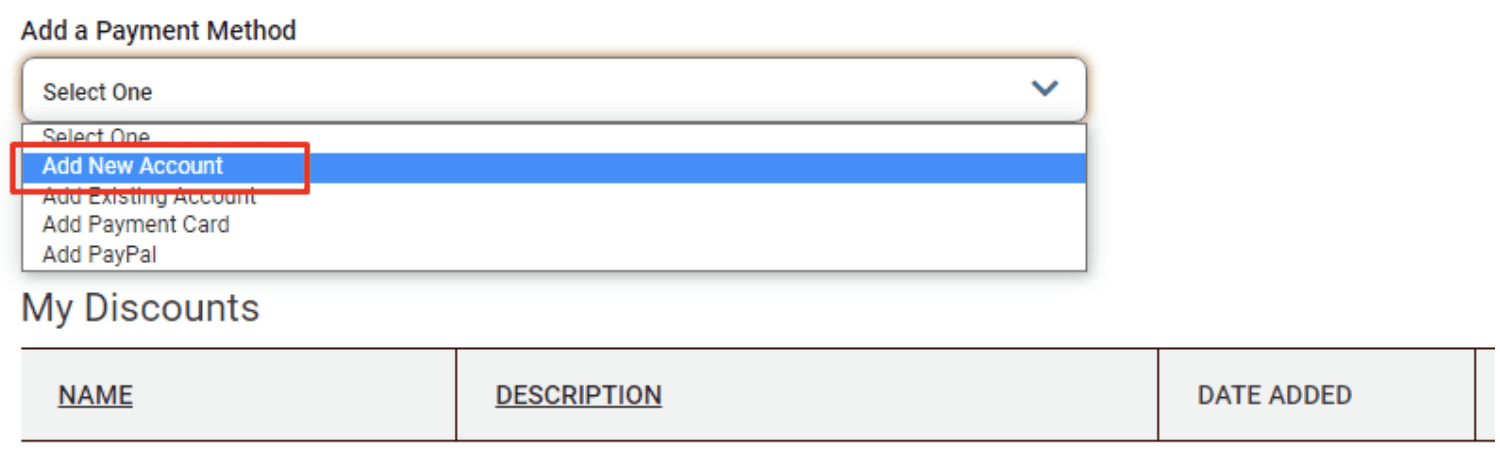
If there is no UPS Account Number, then you will need to create one. You can do this by utilizing the “Add a Payment Method” dropdown and selecting “Add New Account”:
UPS Account Address
Navigate to Profile > Addresses. |
|---|
Use the location address that was determined at the time you added the account.
If none of the addresses in there are working, you can navigate back to
Profile > Payment Options and edit your shipper account to access your Location Address.

UPS Invoice Details
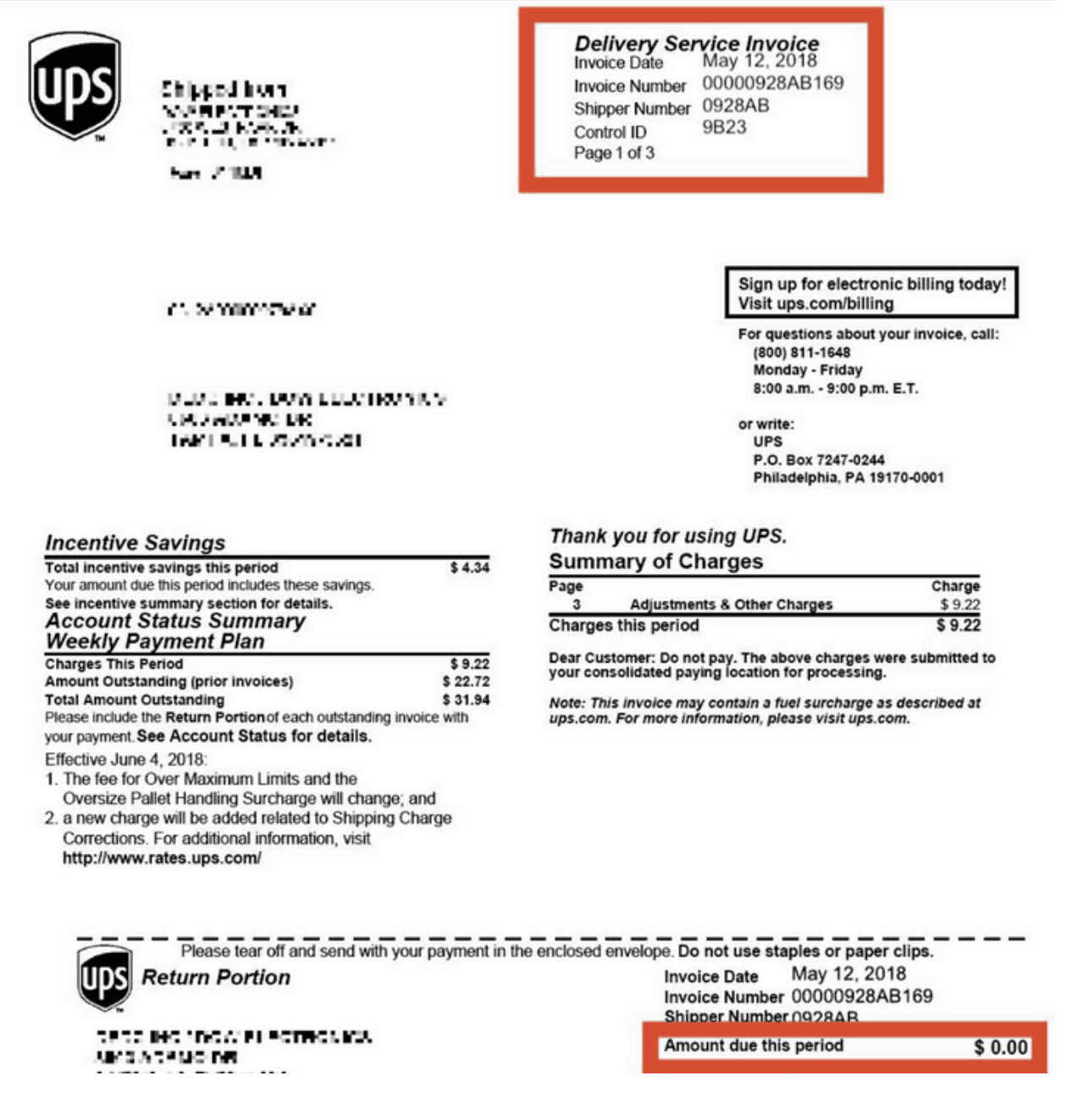
If your account is older than 30 days, then you will need to provide invoice details to register your account within EasyPost.
The Invoice Number, Date, Control ID, and Account Number can be located in the top right corner of the invoice.
The Amount Due can be found in the bottom right corner of the invoice.
Connect your shipping account in the system
After you have all of your account details, read our guide on how to connect your shipping accounts to complete the setup.