FAQs covered in this article:
What's a moodboard?
How do I add a product to a moodboard?
Where can I find my saved moodboards?
Can I collaborate with my team on product selections?
How do I move from a moodboard to placing an order?
What is a moodboard?
A moodboard is a curated selection of textiles from the platform that you group in one place for easy review, collaboration, and planning. It helps you organize ideas, compare options, and share feedback with your team before moving forward with orders.
Adding a product to a moodboard
Go to the product you’re interested in.
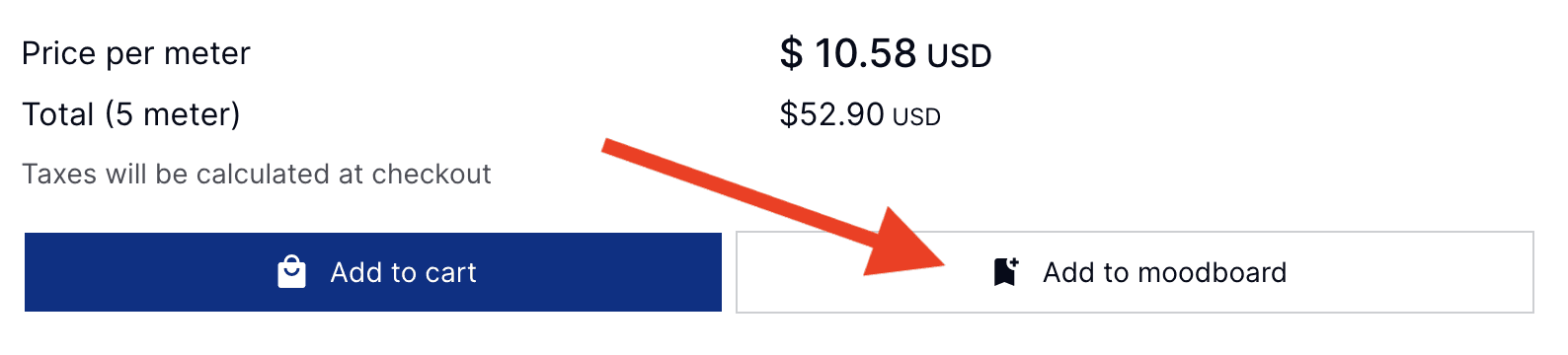
Click on the “Add to Moodboard.” button next to “Add to cart”.
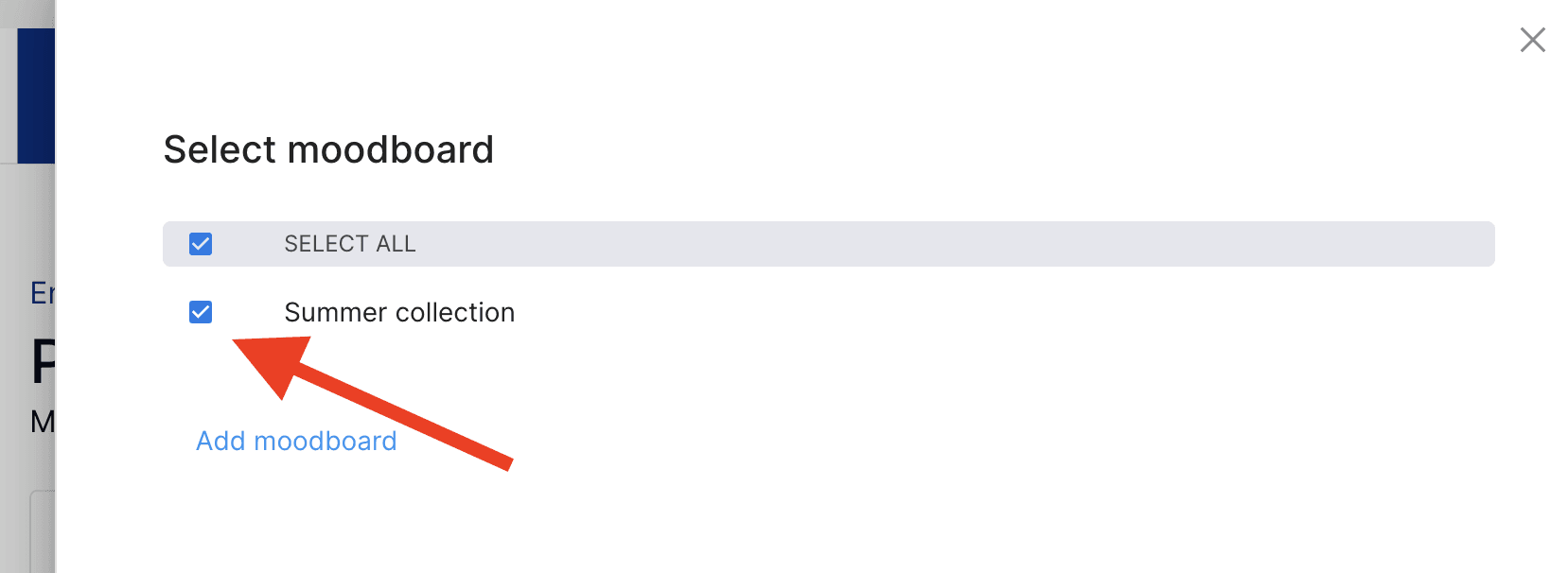
Select an existing moodboard by ticking the corresponding box or create a new one by clicking "Add moodboard" just below.
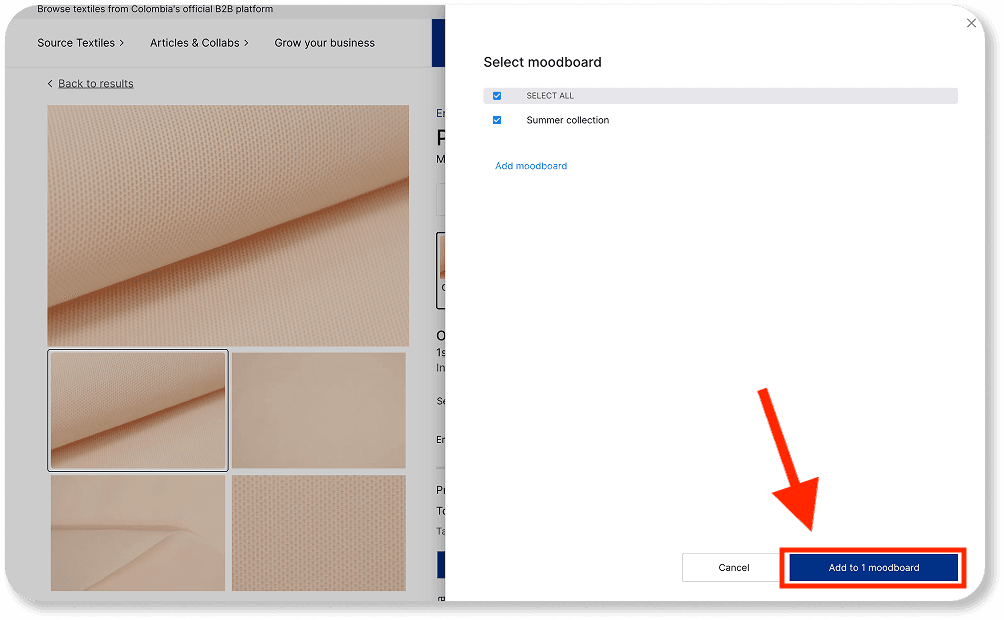
Click “Add to Moodboard” to confirm.
Accessing your moodboards
To view or manage your moodboards:
Click on “My Account” in the top right corner of the platform.
From the dropdown menu, select “Moodboard.”
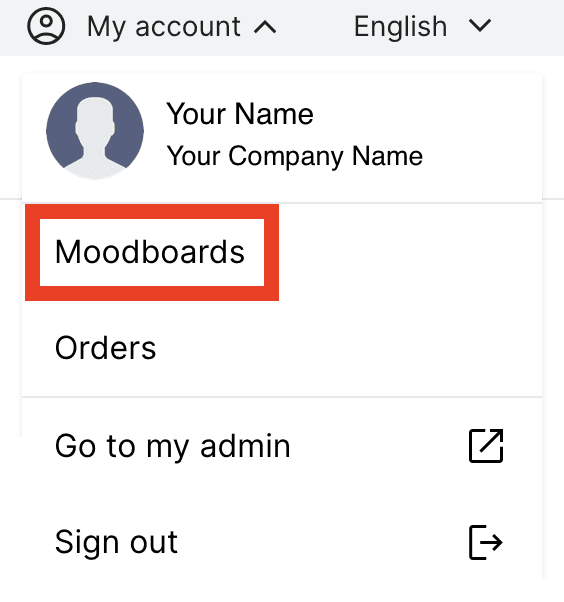
There, you’ll see all your saved moodboards, with the option to create new ones as needed.
Managing products in a moodboard
When in your moodboard page:
You’ll see all the products you've saved.
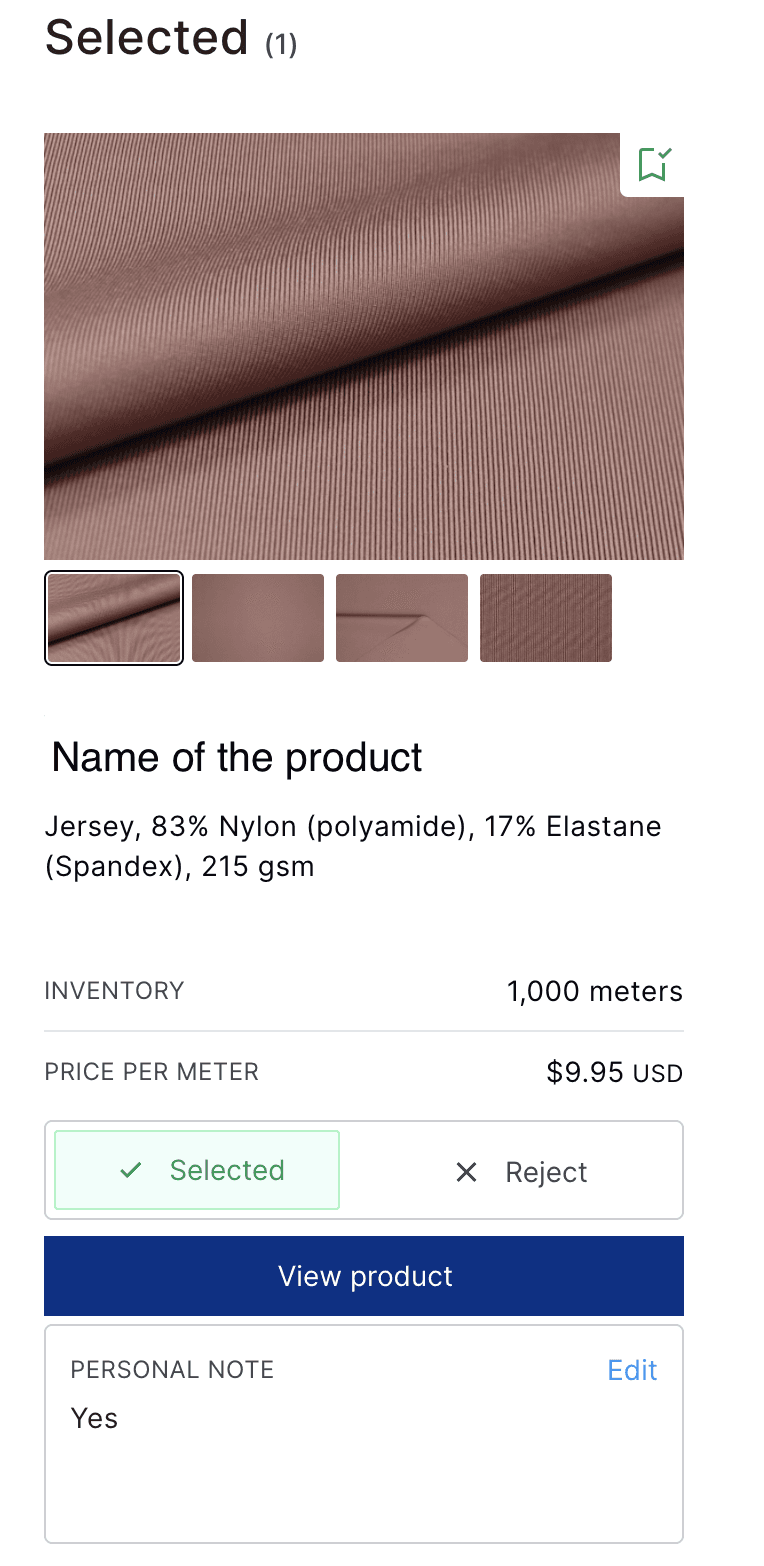
For each product, you can choose to Select or Reject it. This helps you narrow down options and collaborate more efficiently with your team.
When you select or reject a product, you can leave a note to explain your decision.
Note:
Moodboards have four tabs: All, Recently Added (newest products), Selected (products you want to keep for review or ordering), and Rejected (products kept for reference or discussion but can be removed).
Moving products from your Moodboards to Checkout
Once you've finalized your selection:
Click “View Product” to go back to the product page.
From there, click “Add to Cart” to begin the checkout process.