FAQs covered in this article
What does "private" mean for a product?
Can I share a private product?
Who can see public products?
Can I change a product's privacy later?
Do private products still work with QR codes?
Where can I manage my product's privacy settings?
Navigate to: Manage > Product database > Select the desired product |
|---|
Once you’re on the product page, scroll through the tabs until you find Privacy.
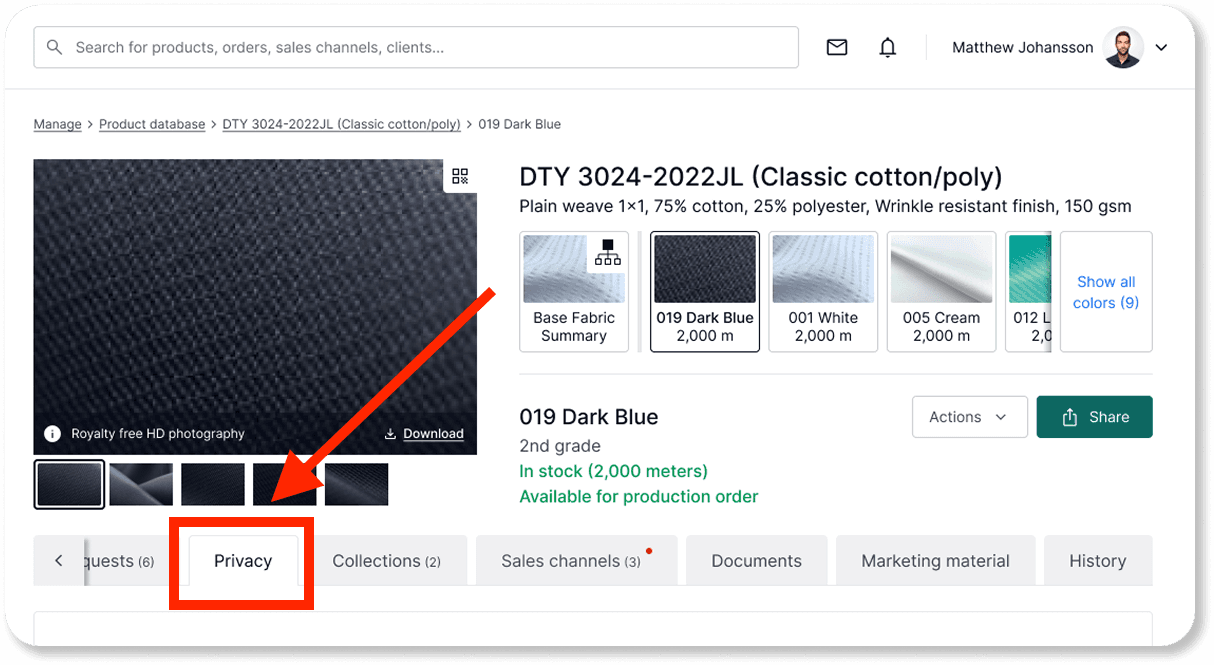
How do I manage my product's privacy settings?
Select your preferred privacy setting by clicking on the toggle under privacy settings.
You can change privacy settings at any time.
You can generate and share QR codes regardless of privacy.
Public: The product is visible on your Digital Showroom and can be discovered by all users.Private: The product can only be accessed through a private link or QR code. You can share it privately with anyone you want using that link.
💡 Tip: A direct URL will be generated automatically for private products. Use it with your sales team or selected clients.
Pros and cons of public or private products
Public Products | Private Products | |
Visibility | ✔ Featured in your store | ✖ Only seen via private link |
New Clients | ✔ Discoverable by all potential buyers | ✖ Limited to who you share the link with |
Sales opportunities | ✔ Eligible for external marketplace display request | ✖ Not eligible for marketplace display |
Control | ✔ Full access for all users | ✔ Shareable with selected clients via direct URL |
Best For | ✔ Launching collections, gaining traction | ✔ Internal testing, pre-releases, exclusives |